How to route customer messages to the right person automatically
When every message lands in one shared inbox, the question is always “who’s got this?”. Here’s how to send each conversation to the right person the moment it arrives, by topic, channel or customer, with Colvy’s automation builder.

A shared inbox is brilliant until it isn't. Everyone can see every message, which means one of two things tends to happen: two people answer the same customer, or nobody does because everyone assumed someone else had it.
The fix is routing: deciding who owns a conversation the moment it arrives. You probably already do this in your head. Refunds go to Sam. Wholesale goes to Alex. Instagram is Jordan's. Here's how to draw those rules once in Colvy, so they happen on every message, on every channel, even when you're not there.
What routing looks like in Colvy
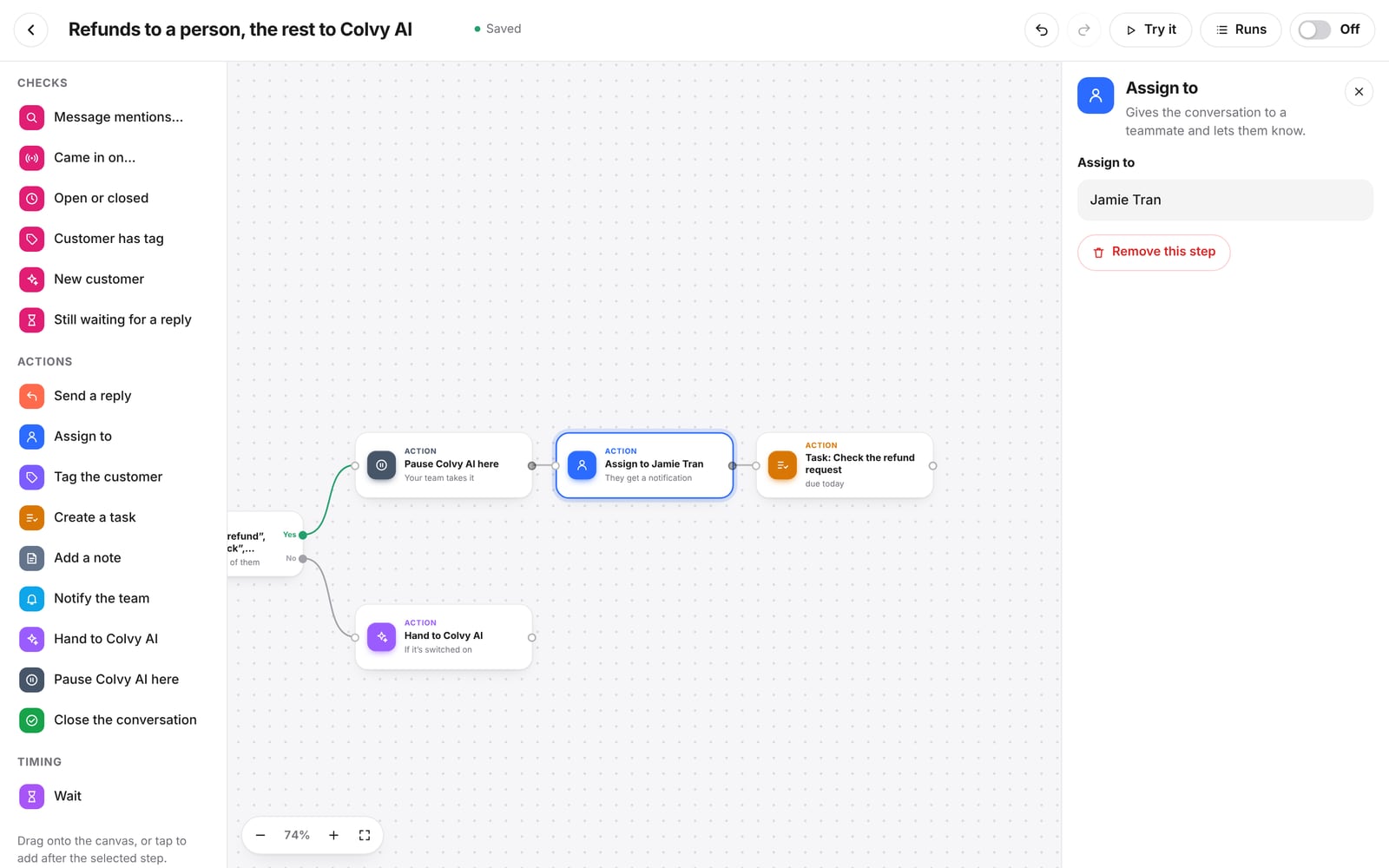
A routing flow in the automation builder has three parts:
- When a customer sends a message,
- one or more checks decide where it goes,
- Assign to gives the conversation to a teammate.
The Assign step doesn't just change a name on the conversation. It sends the person a notification so they know it's theirs.
Start with one setting: first message only
Click the trigger and tick Only the first message of a conversation. Routing is a decision you make once. Without this, a customer's follow-up message could send the conversation back through the flow and move it away from the person already helping.
As a second safety net, every flow waits before running again for the same conversation: 12 hours by default. You can change that to every message, 1 hour, 24 hours, 3 days or 7 days.
Six ways to route
1. By topic
Use a Message mentions… check with the words that signal a topic. Refunds, returns and "money back" go to whoever approves refunds. "Wholesale", "bulk" and "trade" go to your account manager.
The check looks for whole words, ignoring capitals and accents, and plurals count: "refund" matches "Refunds?" but not "prefund". You can list up to 20 words or short phrases in one check.
2. By channel
Use Came in on… to route by where the message arrived: website chat, SMS, email, Messenger, Instagram or WhatsApp. Social messages to whoever runs your socials, email to the office, texts and chats to the front desk.
3. By customer
Use Customer has tag to spot the customers who need a particular person: VIP, Wholesale, Trade. Tag someone once in their customer profile and every conversation they start goes straight to the right place.
4. New customers
Use New customer (their first conversation with you) to send first-timers to the person who makes the best first impression. Add a Tag the customer step with "New customer" so anyone who picks it up later can see they're new.
5. Out of hours
Use Open or closed to treat after-hours messages differently. Assign them to whoever opens up, and add a Create a task step so the conversation is first on their list in the morning. Task due dates can be today, tomorrow, in 2 days or in a week.
6. Urgent
For words like "urgent", "emergency" or "leak", add a Notify the team step as well as assigning. You can notify the people you pick, or everyone on the team if you pick nobody.
Build a routing ladder
Every check has two exits, Yes and No. Join one check's No to the next check and you have a ladder: the message steps down until something matches.
| Step | Check | If yes | If no |
|---|---|---|---|
| 1 | Mentions "refund", "return", "money back" | Assign to Sam | Go to step 2 |
| 2 | Customer has tag "Wholesale" | Assign to Alex | Go to step 3 |
| 3 | Came in on Instagram or Messenger | Assign to Jordan | Go to step 4 |
| 4 | Open or closed: open | Notify the team | Assign to the opener, and create a task |

What routing doesn't do
Two honest limits, so you can plan around them:
- Each Assign step picks one named person. There's no "take turns" or "whoever's least busy" option. If you want to share the load, route by topic or channel instead.
- People change. If someone leaves the team, an Assign step pointing at them can't run. The run notes that the person isn't on the team any more, in plain words under Runs, so you can pick someone else.
Test it before you switch it on
Press Try it, type a made-up message, pick the channel, tick whether it's a new customer and add any tags. The path the message would take lights up on the canvas, and nothing is sent. Try a few: a refund on Instagram, a wholesale order by email, a question at 10pm.
For more flows to borrow, see seven customer service flows worth drawing, or start with how to build your first automation. Automations are included on the Inbox and Everything plans.
Start free and route your first message.
Key takeaways
- Route on the first message of a conversation, so nobody gets reassigned halfway through a chat.
- Chain your checks into a ladder: is it a refund? If not, is it wholesale? If not, which channel did it come in on?
- Assigning a conversation also tells the person it’s theirs, so routing and the heads-up happen in one step.
- Always end the ladder somewhere: a person, the whole team, or Colvy AI. Nothing should fall off the end.
Bring every conversation into one inbox
Messages, calls, reviews and feedback — all in Colvy. Start free.
Get started free