How to set up Colvy Powers for your team, step by step
Colvy Powers is off until you switch it on, and every part of it can be tuned. Here’s how to set it up in Settings: what earns what, daily limits, the Power Shop, the leaderboard, who takes part and your first challenge.

Colvy Powers turns the work your team already does in Colvy into coins, XP and levels, with a shop of playful power-ups to spend the coins on. If you haven't met it yet, start with what Colvy Powers is.
This guide is for the person setting it up. It takes you through every part of Settings → Colvy Powers, in the order we'd do it.
Before you start
- Owners and admins can change the settings. Everyone else just sees the fun parts.
- It's included on every plan.
- It's off by default. Nothing changes in the app until you switch it on, and work done before that doesn't earn anything, so everyone starts from zero on the same day.
Step 1: Switch it on
Go to Settings → Colvy Powers and flip the switch. From then on your team sees a small coin chip in the top bar, with their level, coins and today's progress, and a Colvy Powers page with the Power Shop, challenges, leaderboard and badges.

The promises under the switch are worth reading out to your team: no real money, nothing grants access or permissions, customer messages and real alerts are never held back, and anything aimed at someone can be dismissed.
Step 2: Decide what earns what
The What earns what list shows every way to earn, with coins, XP and a per-day limit for each, and a switch to turn it off.
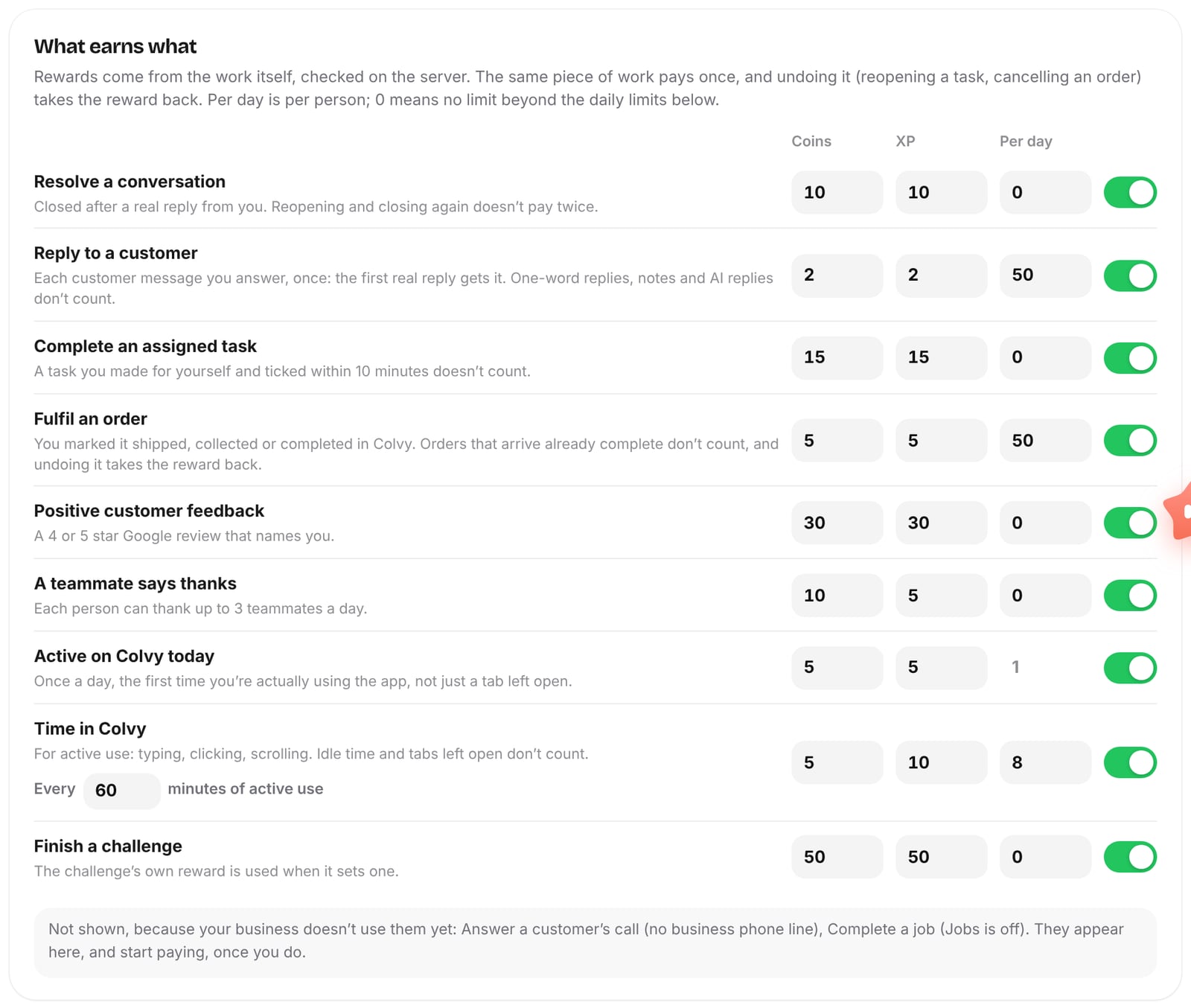
The defaults:
| Work | Coins | XP | Per day |
|---|---|---|---|
| Resolve a conversation | 10 | 10 | no limit |
| Reply to a customer | 2 | 2 | 50 |
| Answer a customer's call | 5 | 5 | 40 |
| Complete an assigned task | 15 | 15 | no limit |
| Complete a job | 25 | 25 | no limit |
| Fulfil an order | 5 | 5 | 50 |
| Positive customer feedback | 30 | 30 | no limit |
| A teammate says thanks | 10 | 5 | no limit |
| Active on Colvy today | 5 | 5 | 1 |
| Time in Colvy (each hour of active use) | 5 | 10 | 8 |
| Finish a challenge | 50 | 50 | no limit |
"No limit" here still sits inside the daily limits in step 3. Rules for things you don't use yet, like calls, jobs or Google reviews, are hidden and don't pay until you start using them.
Step 3: Set the daily limits
Daily limits are per person, per day, in your business's time zone. They keep it fair and stop anyone farming.
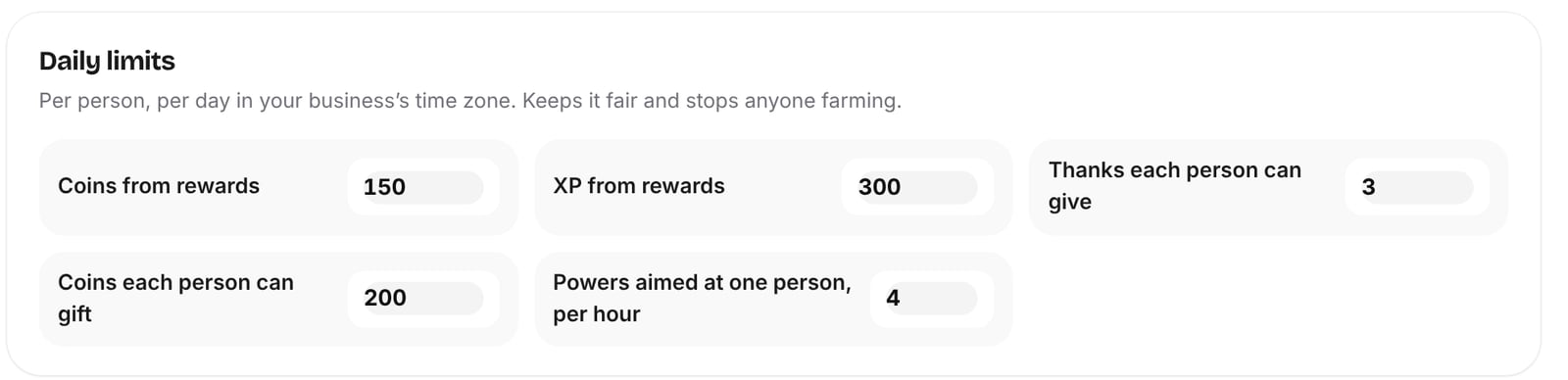
- Coins from rewards: 150 by default.
- XP from rewards: 300 by default.
- Thanks each person can give: 3 a day.
- Coins each person can gift: 200 a day.
- Powers aimed at one person, per hour: 4, so nobody gets swamped with nudges and pins.
A challenge's own reward is paid on top of the daily limits, so finishing one always pays in full.
Step 4: Tune the Power Shop
Under Powers you'll find all twelve power-ups. For each one you can switch it off, change the price, and set how often it can be used: minutes between uses, and uses per day (0 means no limit).
A few sensible starting points:
- Prefer a quieter app? Switch off Nudge and Confetti Bomb, and keep the rest.
- Coins piling up? Raise prices a little. Nobody can afford anything after a week? Lower them.
- Priority Pin only floats a conversation to the top of a teammate's inbox for 30 minutes, and they can unpin it. It can't send a conversation to someone who couldn't already open that inbox.
Step 5: Choose the leaderboard
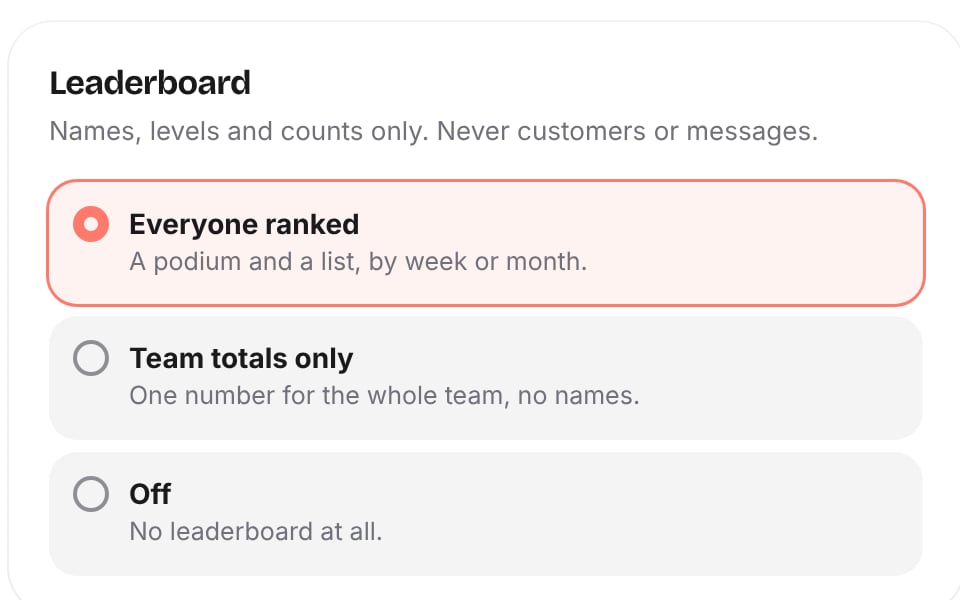
- Everyone ranked: a podium and a list, by week or month.
- Team totals only: one number for the whole team, no names.
- Off: no leaderboard at all.
If you're not sure, start with team totals only. You can switch to a ranking later if the team asks for one. Whichever you choose, it only ever shows names, levels and counts, never customers or messages.
Step 6: Choose who takes part
By default, everyone on the team takes part. Under Who takes part you can narrow it by role (owners, admins, team members) and, if you have more than one location, by location. Leave both empty for everyone. The owner always takes part.
Step 7: Add your first challenge
Challenges give the team something to aim for together. Each one has a title, who it's for, what counts, a target and a reward.
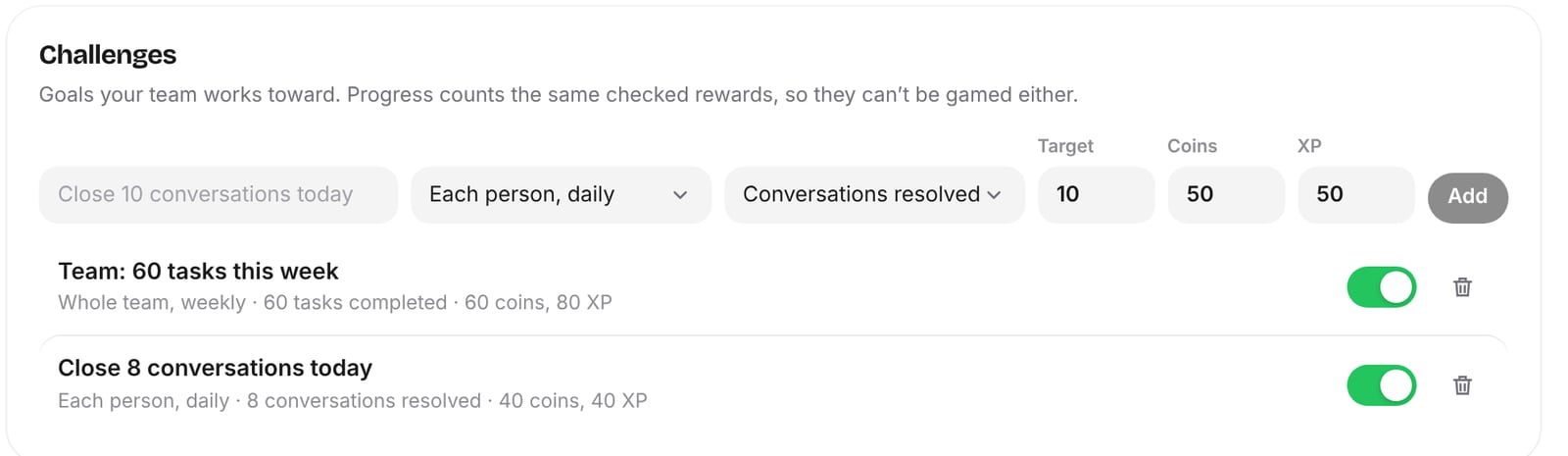
- Who it's for: each person daily, each person weekly, or the whole team weekly. Weeks run Monday to Sunday.
- What counts: conversations resolved, customer replies, calls answered, tasks completed, jobs completed, orders fulfilled, thanks received or happy reviews.
- Reward: coins and XP. The form starts at 50 of each.
A whole-team challenge pays everyone who helped when the team hits the target. You can pause or remove a challenge at any time. For inspiration, see our team challenge ideas.
Step 8: Team wallets, if you need them
Team wallets let an owner or admin give or take back coins, with a reason. The change and the reason are kept, and show in the Activity log and in Coin changes. You can't give yourself coins, and XP can never be handed out: it's only earned.
Tell the team before they notice
The coin chip will appear for everyone the moment you switch on, so say something first. A short note does it:
Start free, or read more about Colvy Powers.
Key takeaways
- Owners and admins set it up in Settings → Colvy Powers. Nothing changes for the team until you switch it on.
- Start with the defaults. They’re built to be fair, and you can change any value later.
- Choose how public it is: everyone ranked, team totals only, or no leaderboard at all.
- Add one challenge in your first week, and tell the team what it’s for before they spot the coin chip.
Bring every conversation into one inbox
Messages, calls, reviews and feedback — all in Colvy. Start free.
Get started free